How-to
HRStop integration with Slack
On this page

Why integrate with Slack?
Collaborating on Slack? Streamline your HR workflow effortlessly! Connect your HRStop with Slack to receive notifications in your preferred channels (#hr, #general).
Picture this: Your HR team uses Slack for seamless communication, and HRStop for hire-to-retire HR/payroll management. The integration supercharges productivity, transforming your workplace into an efficient hub of success.
Handle job applications, leave requests, and team communication seamlessly. All relevant notifications, from leave applications/ approvals to birthday reminders, are consolidated in Slack channels. Say goodbye to scattered communications and hello to a connected and productive workspace!
Benefits of Slack integration
- Real-time notifications: Receive instant updates on important HR and employee-related activities directly in your Slack channels.
- Effortless collaboration: Foster collaboration among your team members by enabling them to share files, updates, and feedback in real time.
- Automated workflows: HRStop's integration with Slack ensures that you can automate notifications, reminders, and approvals, allowing your team to focus on strategic initiatives.
- Increased productivity: Unlock the power of productivity! Integrating Slack with HRStop supercharges HR communication, boosts employee engagement, and transforms your workplace into a seamless, efficient hub of success!
Integrating HRStop and Slack
To integrate HRStop with Slack:
- Open your HRStop portal.
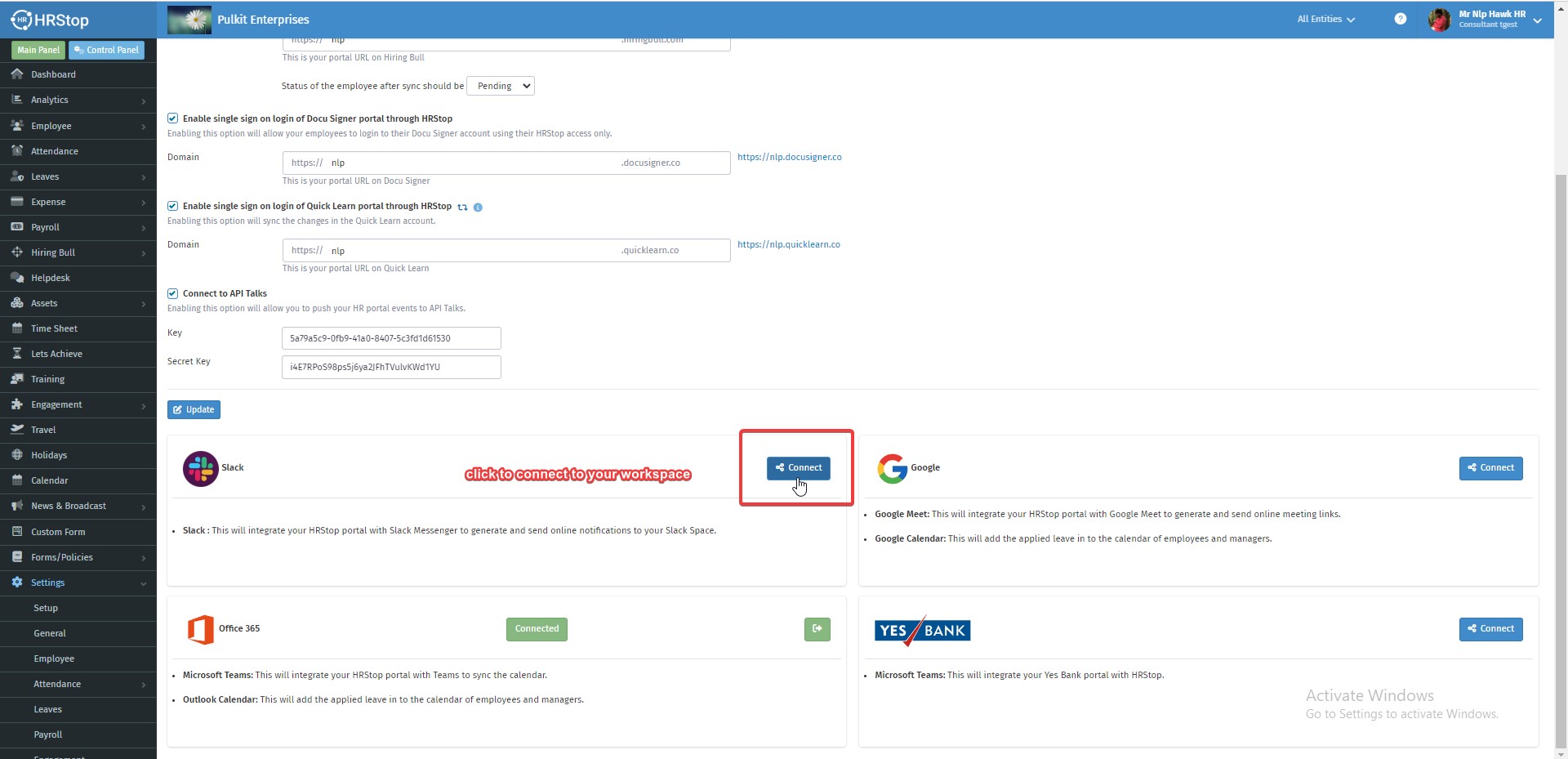
- Navigate to Control Panel → Settings → Integrations.
- On the Integrations page, click the Connect button under the Slack section.
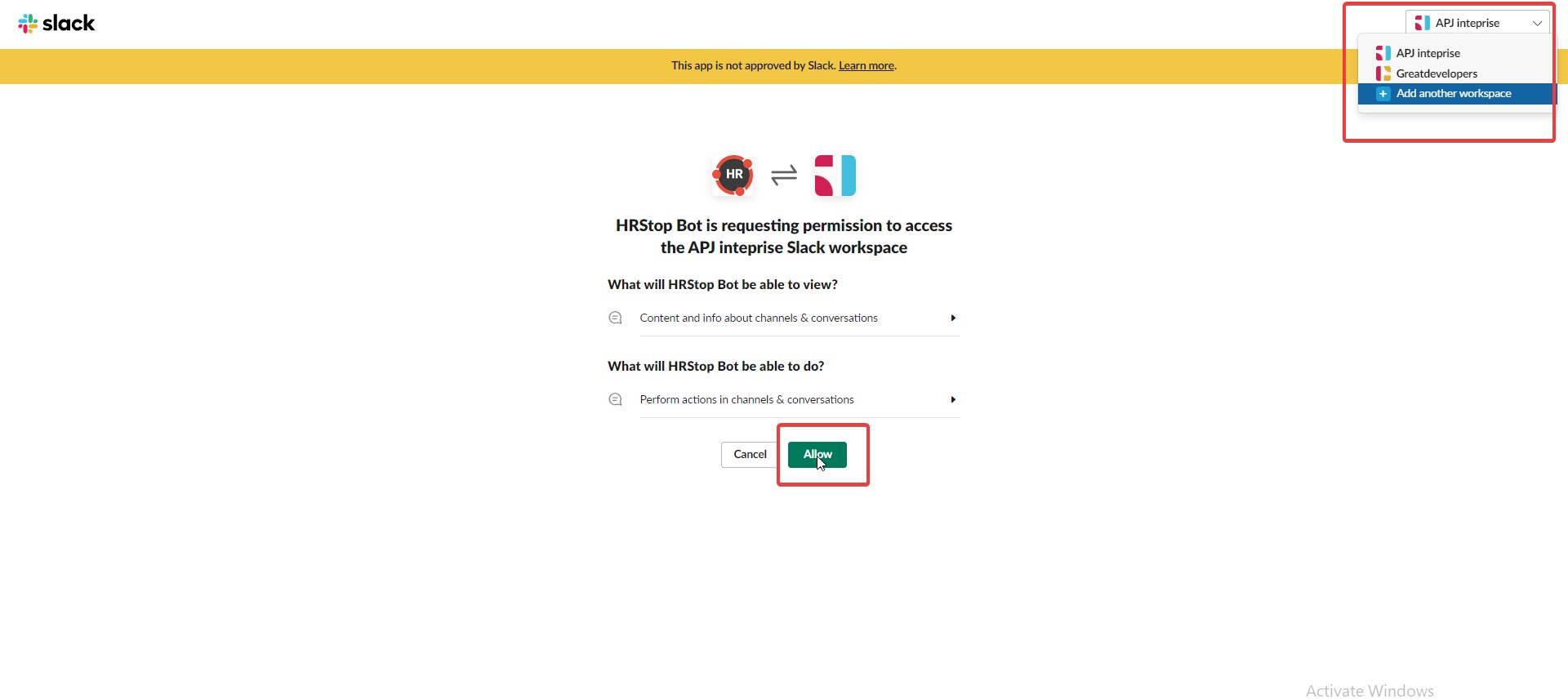
4. Click the Allow button to grant HRStop Bot access to the Slack workspace.
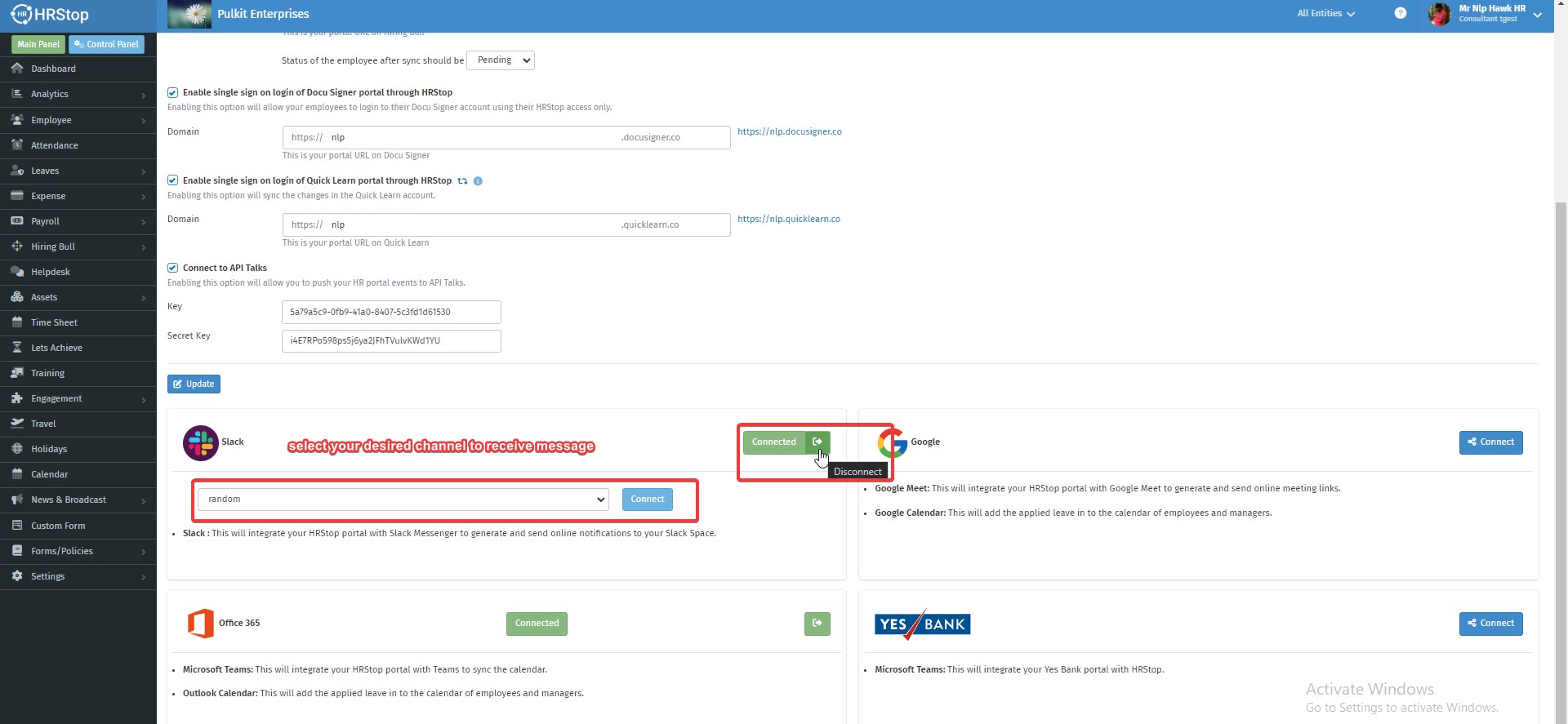
5. Choose the Channel to which you want to push notifications.
Note: You must be logged in, on your system, to the workspace you want to connect with HRStop_Bot.
Receiving Notifications
Once the integration is complete, you start receiving notifications into your Slack channel.
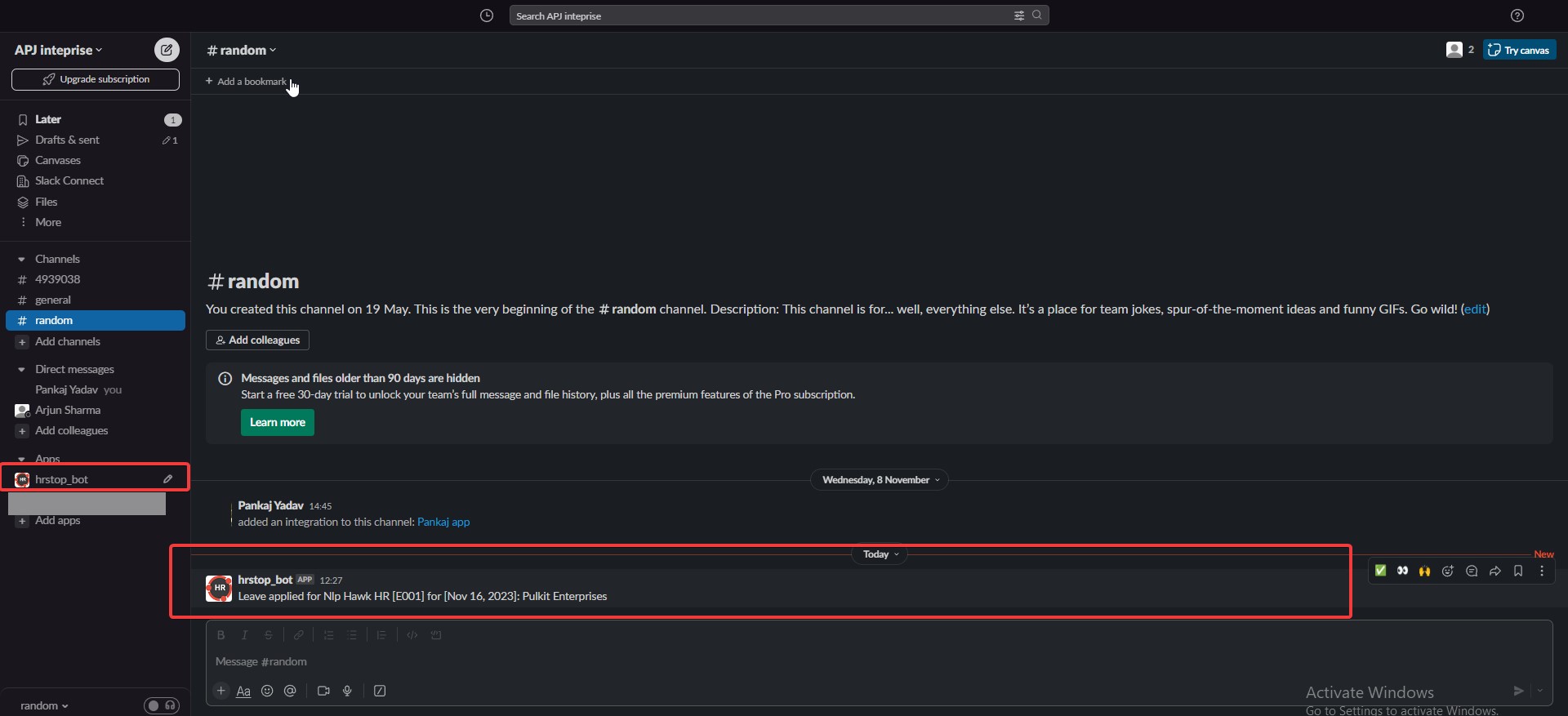
Disabling the integration
To disable the integration, follow the instructions below:
- Open your HRStop portal.
- Navigate to Control Panel → Settings → Integrations.
- On the Integrations page, click the Exit button under the Slack section to disable the integration.
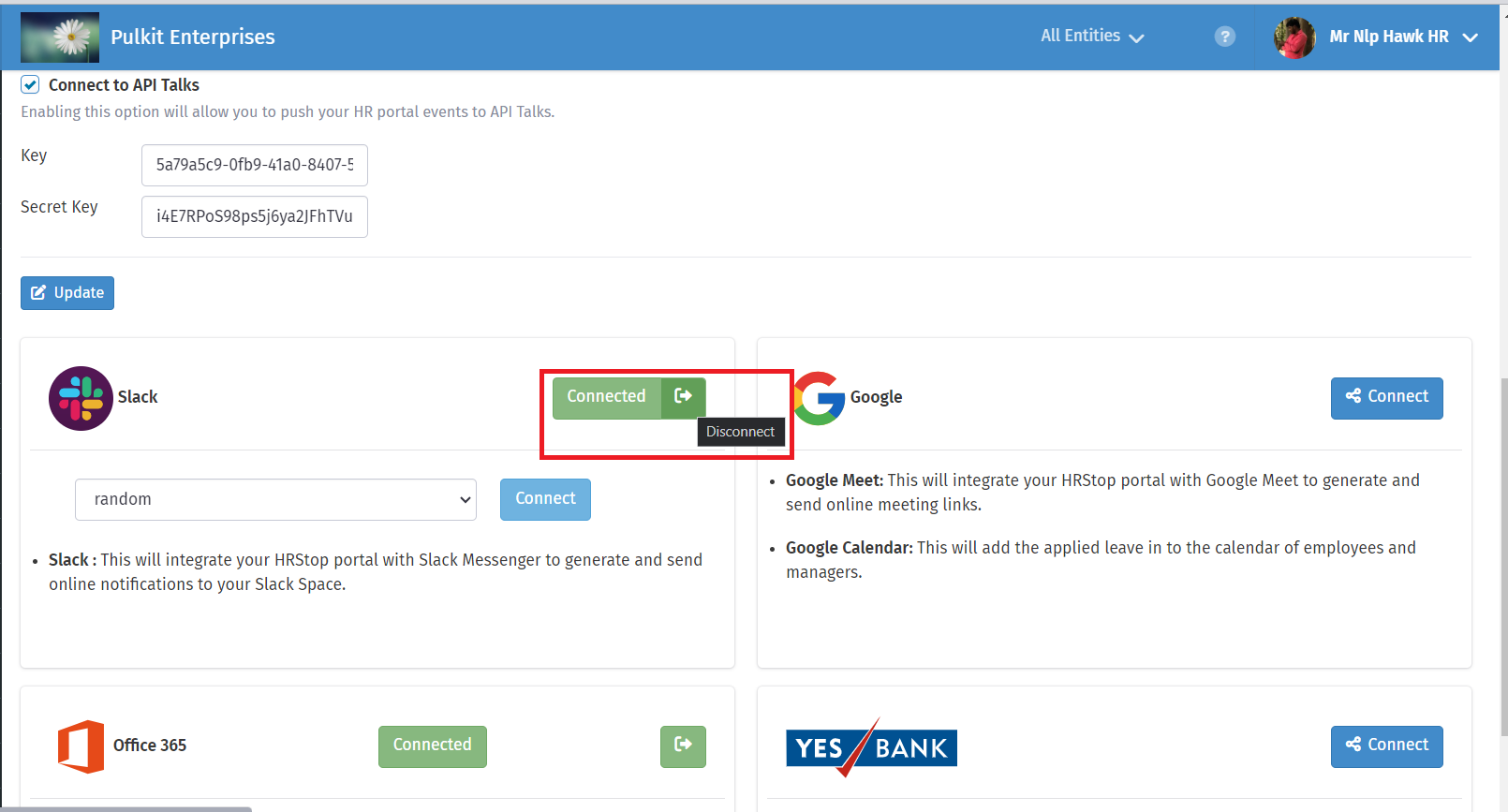
Important permissions: If these permissions are enabled
1 - Require approved apps - With this permission, any app or bot must be approved by your workspace manager before it is downloaded. Only after approval is the HRStop bot added to your workspace.
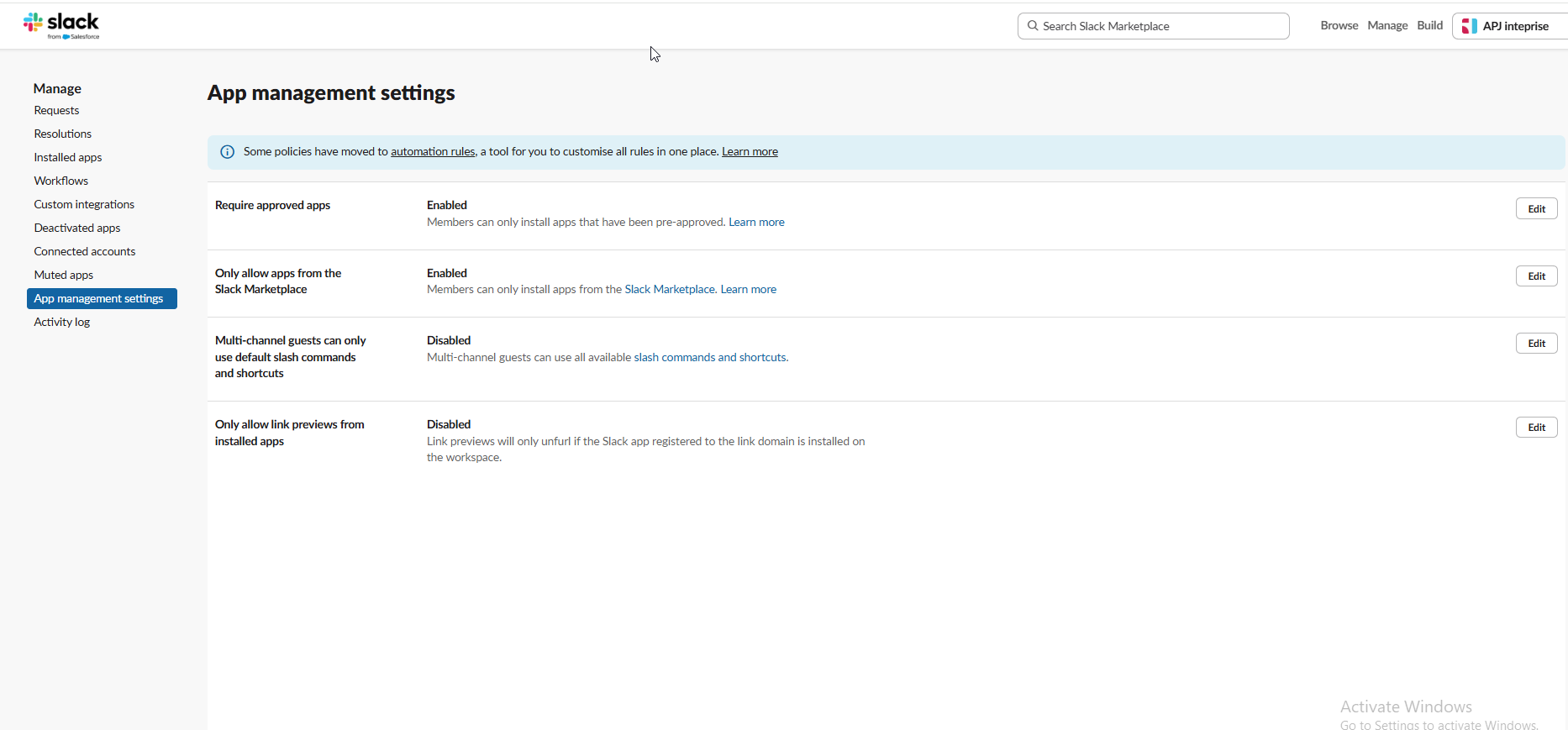
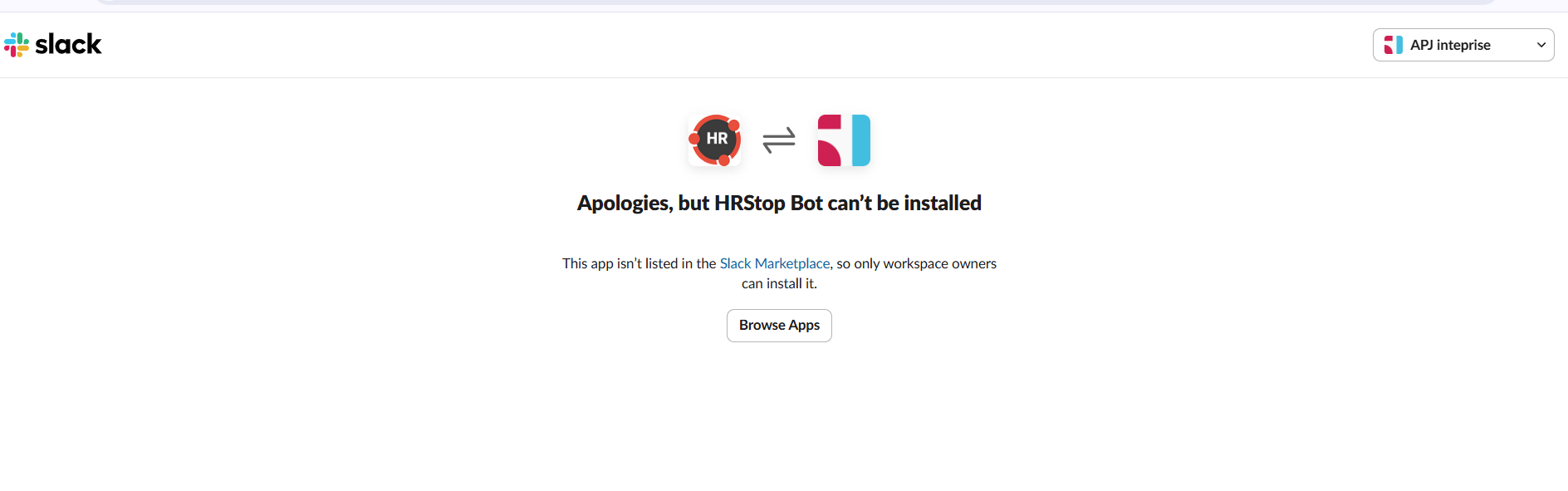
2 - Only allow apps from the Slack Marketplace - As the HRStop bot is pending approval on the Slack Marketplace, if this setting is enabled, you get the message below when you click the Connect button.
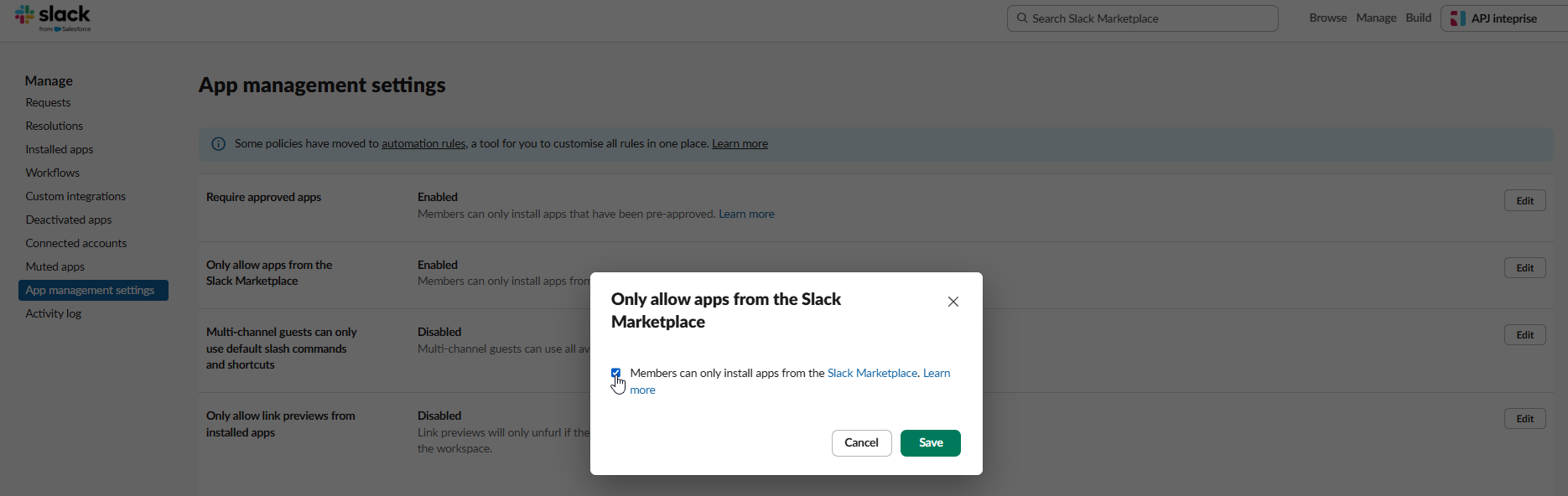
For now, click the Edit button against this setting and click disable.
After this, when you click the connect button in HRStop, you see a screen like this:
.png)
Click allow. The HRStop bot is added to your workspace, and you receive notifications for actions performed in your HRStop portal.